


How to Reinstall Windows 11: 4 Ways, and Which Keep Your Files
Microsoft's support page, updated 28 October 2026, says Cloud rebuild is available on Windows 11 with the October 2026 non-security update or later. It reinstalls Windows and drivers from Windows Update with no USB drive, and it removes all personal files.

Abdul Rehman
Lead Systems Architect and Technical Director · · 8 min read

The short version
- 26300.8772 (6 July 2026)
- First Insider build with Cloud rebuild
- October 2026 non-security update or later
- Update Microsoft says Cloud rebuild needs
- Remove files, Remove & sanitize
- 2
Why it matters: Cloud rebuild lets you reinstall Windows 11 without a USB drive or a bootable system, but it wipes your files, so use Reinstall now or Reset this PC with Keep my files when your data matters.
If you need to know how to reinstall Windows 11, Microsoft now documents four official routes, and the newest one needs neither a USB drive nor a copy of Windows that still boots. It is called Cloud rebuild. According to Microsoft's Cloud rebuild support page, it downloads a fresh copy of Windows plus your PC's drivers from Windows Update and installs them from scratch.
It comes with a hard trade-off: Cloud rebuild erases everything on the PC. If you want a Windows 11 reinstall that keeps your documents and photos, you need one of the older tools, or a USB stick.
Which one you pick decides whether your files survive, so each method below starts with what it does to your data.
What is Windows 11 Cloud Rebuild?
Windows 11 Cloud Rebuild is a recovery option that wipes the PC and reinstalls Windows using files fetched from Microsoft's servers. Microsoft's Insider release notes describe it as a way to return a PC to a clean, known-good state through a full OS reinstall, even when Windows won't boot.
The difference from the older Reset this PC tool is where the files come from. Per those notes, Cloud rebuild downloads both the Windows image and the device's drivers from Windows Update, so it needs no USB media, no custom image and no healthy copy of the installed OS. The support page adds that it works even if the Windows files on your PC are badly damaged.
The feature has been in testing for most of a year. BleepingComputer reports that Microsoft first showed it at its Ignite conference in November 2025, as part of the Windows Resiliency Initiative. Microsoft shipped it to Windows Insiders (volunteers who test preview builds) in Experimental build 26300.8772 on 6 July 2026.
Later Beta channel builds picked it up. Thurrott reported on 2 October that Beta build 28020.3142 includes it, and that newer builds added a Settings shortcut plus two file-removal choices. Pureinfotech had earlier reported Beta build 26220.9343 adding it; we could not confirm that build against Microsoft's own notes.
Microsoft's support page now goes further. Last updated on 28 October 2026, it says Cloud rebuild is available on Windows 11 once you install the October 2026 Windows non-security update or later, through Windows Update or the Microsoft Update Catalog. The page does not say whether every PC gets the option at the same moment, so if you can't find it, check for that update first.
Does Cloud Rebuild delete my files?
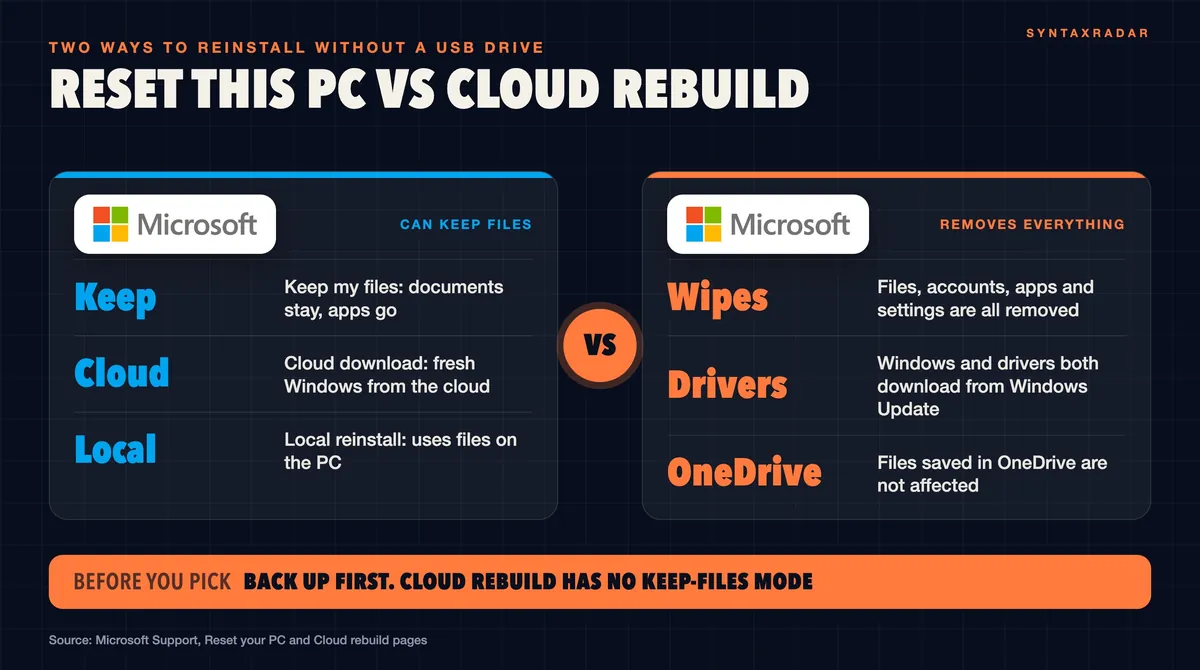
Yes, Cloud rebuild deletes your files. Microsoft's support page says it "removes everything on your PC, including your personal files, accounts, apps, and settings." None of Microsoft's documentation or the reports we read describes a keep-my-files mode, and the process makes you accept a data-removal warning before it starts.
Two things survive. Files saved in OneDrive or another cloud service aren't affected, per Microsoft. And on a PC with more than one disk, if you choose to sanitize only the Windows disk, files on your other disks are kept.
You do choose how thoroughly your data goes:
- Remove files: faster, but Microsoft warns that someone with special recovery tools might still recover what was deleted. It is meant for a PC you plan to keep using.
- Remove & sanitize: makes the data much harder to recover and takes longer. It is meant for a PC you will recycle, return or give away.
Sanitizing can't be undone. Microsoft also says how well sanitizing works depends on your storage hardware, and that Windows can't independently verify it.
How to reinstall Windows 11 without losing data
Two built-in tools reinstall Windows 11 and keep your personal files. Back up anyway: every Microsoft guide cited here tells you to.
Option 1: Reinstall now (keeps apps, files and settings)
The lightest repair is called Fix problems using Windows Update. According to Microsoft's guide, it reinstalls the same version of Windows you already run, repairs system files and components, and keeps your apps, files and settings.
- Open Settings > System > Recovery.
- Under Fix problems using Windows Update, select Reinstall now.
- Choose whether the PC may restart on its own 15 minutes after the install finishes.
Keep the PC plugged in and online the whole time. The option may be missing on PCs managed by a work or school, and it needs Windows 11 with the 2022 annual update plus the February 2024 optional update or later.
Option 2: Reset this PC with Keep my files
Reset this PC goes further. Its Keep my files setting reinstalls Windows and keeps your documents and photos, but removes your apps and settings, so expect to reinstall software afterwards.
- Open Settings > System > Recovery and select Reset PC.
- Choose Keep my files.
- Choose Cloud download for a fresh copy of Windows from Microsoft, or Local reinstall to use files already on the PC (faster on a slow connection, but it may lack the latest updates).
If your drive is encrypted with BitLocker (Windows' built-in disk encryption), have the recovery key ready. Microsoft also warns that the screen can stay black for a long time, occasionally upwards of 15 minutes, and that restarting the PC yourself during the reset could make it fail.
Reinstall Windows 11 without a USB drive
You can reinstall Windows 11 without USB in two ways: Reset this PC with Cloud download, or Cloud rebuild. Both pull Windows from Microsoft. What sets Cloud rebuild apart, per Microsoft's notes, is that it also downloads drivers and does not depend on the health of the installed system. Microsoft suggests it for problems that other recovery options can't fix.
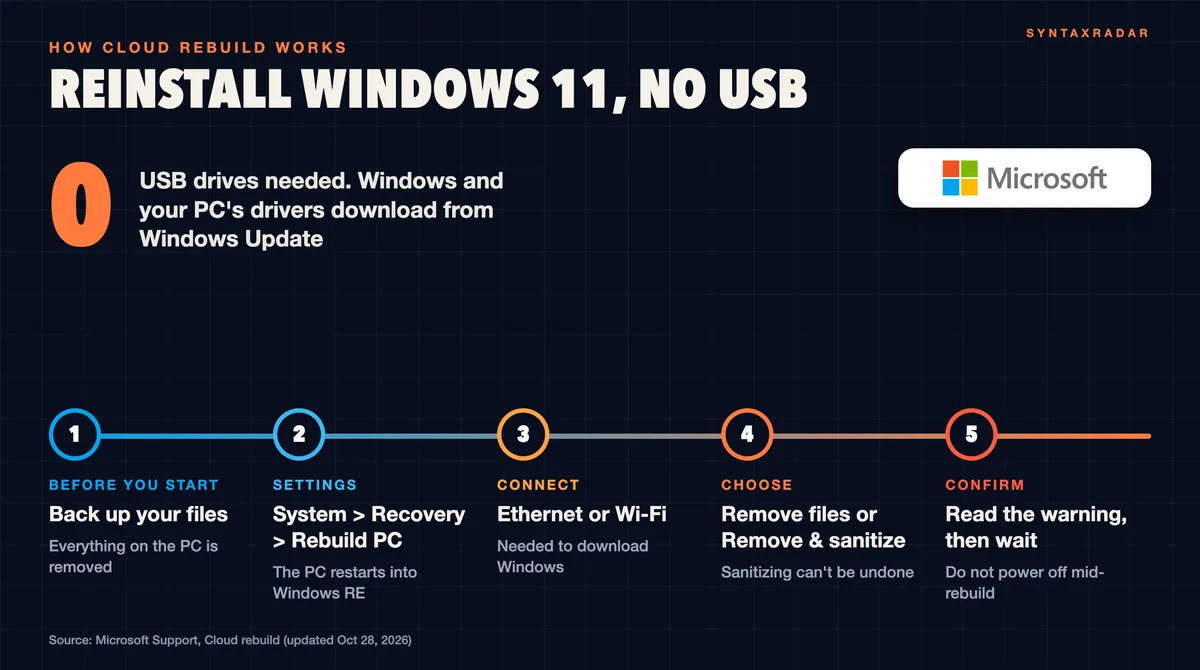
Here are the Cloud rebuild steps from Microsoft's support page:
- Back up your files, plug the PC into power, and have Ethernet or Wi-Fi ready.
- Open Settings > System > Recovery and, next to Rebuild this PC, select Rebuild PC. The PC restarts into the Windows Recovery Environment (Windows RE, the repair screens that load before Windows).
- If Windows won't start at all, open Windows RE instead (it opens automatically after Windows fails to start several times) and select Troubleshoot > Cloud rebuild.
- Connect to your network, then pick Remove files or Remove & sanitize.
- Check that the Windows version, edition and language are the ones you want, read the warning, and continue.
- Leave it alone. Microsoft says turning the PC off mid-rebuild might leave Windows unable to start. It restarts several times, then opens Windows setup as if the PC were new.
Insiders on the July preview build found it at Troubleshoot > Recovery and uninstall > Cloud rebuild, so the path may look different on test builds.
If it fails, the support page lists three error codes. 0x800704C6 means the PC isn't online. 0xc1900200 means it doesn't meet Windows 11's requirements, most often because the TPM (a security chip Windows 11 needs) is switched off in the UEFI or BIOS settings. 0xc1900224 means a driver your PC needs isn't on Windows Update; Microsoft then points you to the manufacturer, its recovery media or installation media.
Files saved in OneDrive or another cloud service aren't affected. For IT teams working out how to reimage Windows 11 machines, the July Insider notes add one detail: starting in Windows 11 26H2, Windows settings backup is on by default for eligible Entra-joined or hybrid-joined commercial devices, so a reimaged or reset device returns to a familiar setup.
Reinstall Windows 11 from USB
A USB stick is still the fallback when the built-in tools fail, and it can either keep everything or wipe the disk completely. Per Microsoft's installation media guide, you make one on a working PC with the Media Creation Tool, which downloads Windows and creates a bootable USB drive or DVD.
Keep your files: run setup from inside Windows
- With Windows running, plug in the USB drive.
- Open File Explorer, open the drive, run setup.exe.
- Select Change what to keep: Keep personal files and apps, Keep personal files only, or Keep nothing.
- Select Install. The PC restarts several times.
Start fresh: boot from the USB drive
A clean reinstall of Windows 11, also called a fresh install, deletes everything on the disk, so back up first.
- Boot the PC from the USB drive.
- Pick language and keyboard, select Install Windows 11, and agree that everything will be deleted.
- Choose the edition your license covers (a Home PC goes back as Home).
- Delete the partitions on Disk 0 only, then install. The PC restarts several times.
Before you reinstall Windows 11 from USB, link your Windows digital license to your Microsoft account. Activation usually happens automatically once the PC is online.
Which Windows 11 reinstall should you pick?
When reinstalling Windows 11, start with the lightest tool that might fix the problem. Reinstall now repairs Windows without touching your stuff; Reset this PC with Keep my files costs you your apps. Save Cloud rebuild for a PC that won't boot or that the other options couldn't fix, and only once your files are backed up.
Selling or giving the PC away is a separate case. Microsoft says the erase option in Reset this PC does not meet government and industry data erasure standards, and that Cloud rebuild's sanitize option is only as good as the storage hardware underneath it.
What to watch next
- The Settings entry. Look for Rebuild this PC under System > Recovery after the October 2026 non-security update. Microsoft's sources here don't say how quickly it reaches every PC.
- A keep-files mode. Nothing Microsoft has published, and none of the reports we read, mentions one. Until that changes, back up first.
- Feedback from testers. Microsoft asks Insiders to report problems in Feedback Hub under Recovery > Cloud rebuild, and its Insider notes warn that preview features can change or be dropped.
For now, how to reinstall Windows 11 comes down to one question: are your files somewhere other than this PC?
Questions readers ask
Can I reinstall Windows 11 without a USB drive?
Yes. Reinstall now (under Fix problems using Windows Update) and Reset this PC both run from Settings > System > Recovery, and Reset this PC can download Windows from the cloud. Cloud rebuild also needs no USB drive: Microsoft says it downloads Windows and drivers from Windows Update and works even when Windows won't start.
Does Cloud rebuild keep my files?
No. Microsoft says Cloud rebuild removes everything on the PC, including personal files, accounts, apps and settings. Files stored in OneDrive or another cloud service aren't affected, and with Remove and sanitize on a multi-disk PC you can limit sanitizing to the Windows disk. Back up before you start.
Will I need my product key after I reinstall Windows 11?
Usually not. Microsoft says activation normally happens automatically once the PC is online, as long as your digital license is linked to your Microsoft account. For a USB clean install, pick the edition your license covers.
Is Cloud rebuild still an Insider-only feature?
It started that way, in Experimental build 26300.8772 on 6 July 2026, and later reached Beta builds. Microsoft's support page, updated 28 October 2026, now says it is available on Windows 11 with the October 2026 non-security update or later. The page does not say whether every PC gets it at once.
Can you reinstall Windows 11 without losing data?
Use Reinstall now, which keeps your apps, files and settings, or Reset this PC with Keep my files, which keeps documents and photos but removes apps and settings. A USB setup.exe run from inside Windows also lets you keep files. Back up first either way.
What are the steps to reinstall Windows 11 from USB?
Make installation media with the Media Creation Tool on a working PC. To keep files, run setup.exe from the USB drive inside Windows and choose what to keep. For a clean install, boot from the USB drive, which deletes everything on the disk.
Written by
Abdul Rehman
Lead Systems Architect and Technical Director at Syntaxradar. More in Developer Tools.
More in Developer Tools
See all
Linux Kernel Vulnerability CVE-2026-98432: Are You Exposed?
CVE-2026-98432, a use-after-free in how Linux handles IPv4 options during the TCP handshake, was published on October 15. The kernel CNA and Red Hat score it 9.8 Critical. Fixed…
Nov 2, 2026 · 6 min read

DeepSeek Harness vs Claude Code: Is the Free Rival Ready?
DeepSeek released DeepSeek Harness (dsh), an MIT-licensed open-source coding agent, as a developer preview on August 13, 2026, added desktop apps on October 2, and starts billing…
Nov 1, 2026 · 7 min read
Claude Code Extension VSCode Backdoor: How to Check and Clean Up
Phorion reports that Claude Code for VS Code 2.1.313 on the Cursor Marketplace hid a backdoor that planted an SSH key, opened a reverse tunnel and beaconed system details. Cursor…
Oct 31, 2026 · 7 min read
Latest stories
Front page
Postgres 19 Release Date: Why AI Bug Hunters Pushed It Back
Abdul Rehman · Nov 3, 2026 · 7 min read

Why Does AI Use Em Dashes? Even OpenAI Can't Say for Sure
Abdul Rehman · Nov 2, 2026 · 7 min read

What Are Flock Cameras? Why Police Chiefs Are Unplugging Them
Abdul Rehman · Nov 2, 2026 · 6 min read

Data Center Moratorium: Why Governors Are Fighting Over It
Abdul Rehman · Nov 2, 2026 · 7 min read