


Tmux Ghostty Guide: What 1.4 Changes and Who Should Switch
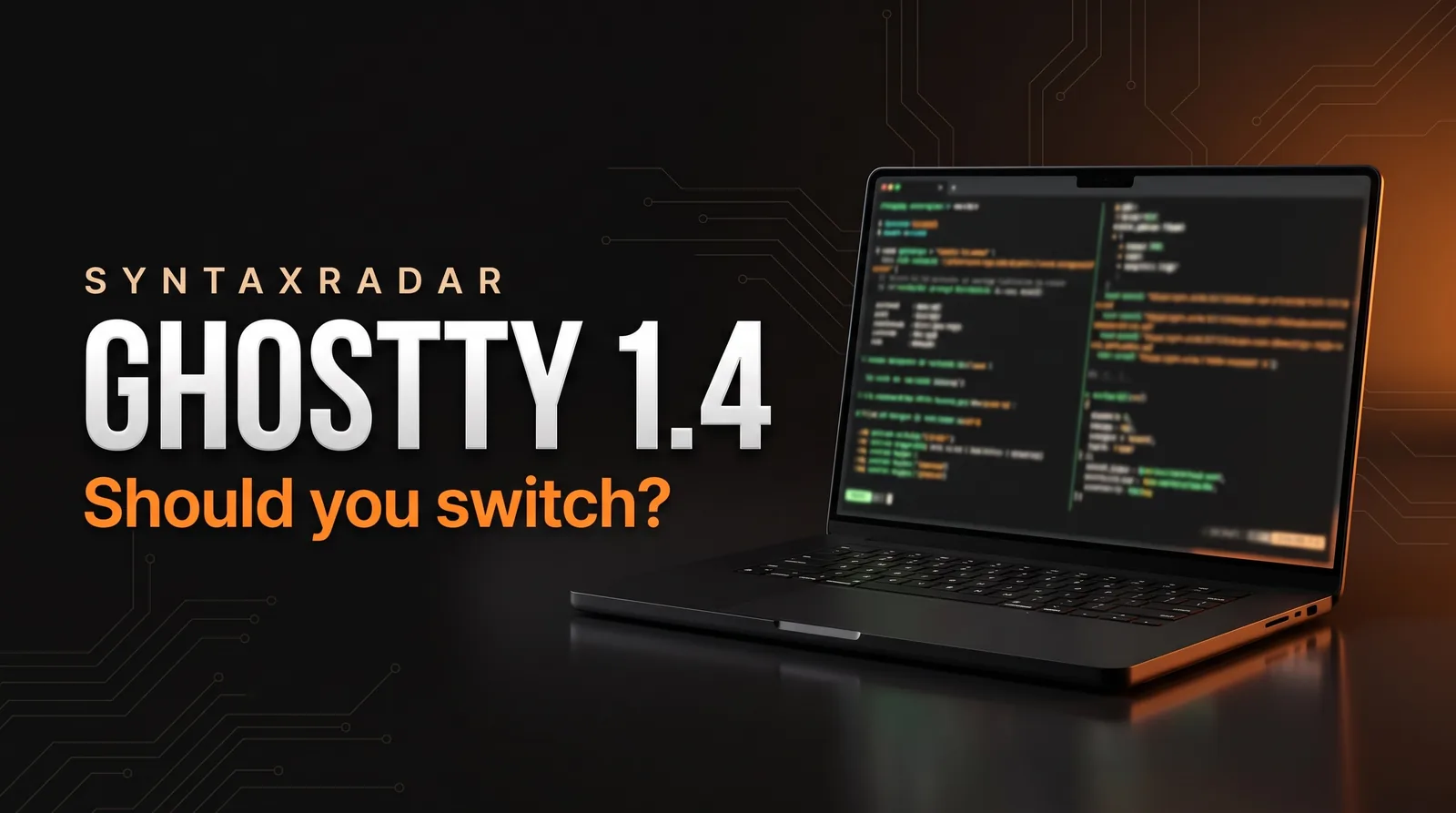
Ghostty 1.4.0 shipped on October 27, 2026 after seven months of work by 172 contributors. It parses plain text up to 5.7x faster, cuts idle scrollback memory by 70% to 90%, adds full Kitty graphics support and a new Linux renderer, and fixes 10 security advisories.

Abdul Rehman
Lead Systems Architect and Technical Director · · 7 min read
The short version
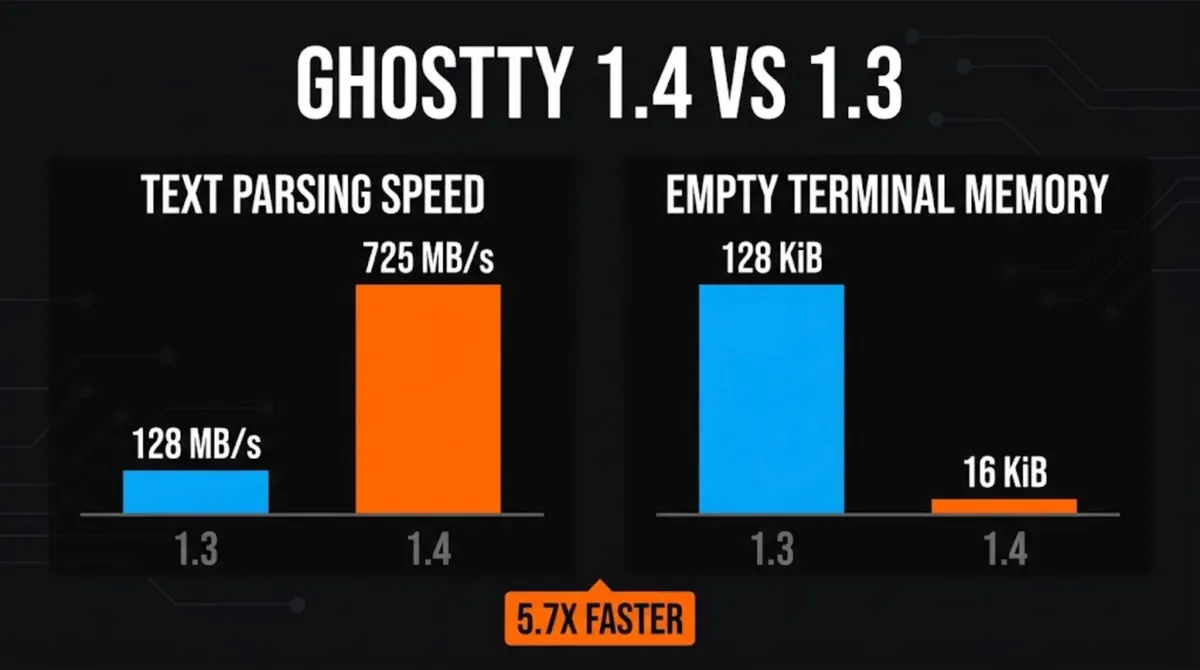
- 128 MB/s to 725 MB/s
- Plain-text parsing on M4 Max
- 70% to 90%
- Idle scrollback memory saved
- 128 KiB to 16 KiB
- Empty terminal memory (macOS)
Why it matters: Ghostty 1.4 makes a fast, native terminal lighter on memory, so heavy terminal users have a strong reason to try it, while tmux stays useful mainly for persistent remote sessions.
Ghostty 1.4 shipped on October 27, 2026, and by the next day it was sitting on the Hacker News front page with 1,239 points. That is a lot of attention for a terminal app. The headline numbers explain some of it: on an M4 Max Mac, plain text now parses at 725 MB/s instead of 128 MB/s, and a fresh, empty terminal uses about an eighth of the memory it used to.
If you have searched "tmux ghostty" because you are wondering whether the two belong together, or whether Ghostty should replace the Terminal app you already have, this guide is for you. The release covers seven months of work from 172 contributors across 2,889 commits, and most of it is invisible until you know where to look.
By the end you will know what a terminal emulator actually does, what the 1.4 numbers mean in daily use, how Ghostty compares with macOS Terminal and tmux, and whether switching is worth your afternoon.
What is Ghostty?
A terminal emulator is the window where you type commands. Decades ago, a terminal was a physical screen and keyboard wired to a big shared computer. Today it is an app that imitates one: it shows text, passes your keystrokes to a shell (the program that actually runs your commands, such as zsh or bash), and decodes a stream of hidden control codes that say where the cursor goes, which colour to use and when to clear the screen. Decoding those codes quickly and correctly is most of the job.
Ghostty is one of these apps. According to its about page, Mitchell Hashimoto started it as a passion project in his free time, with a simple goal: a terminal that is native, feature-rich and fast at once. Many terminals give up one of those three to get the other two.
"Native" is meant literally. On macOS, Ghostty is written in Swift with AppKit and SwiftUI, so its windows, tabs and menus behave like any other Mac app. On Linux it is written in Zig on top of the GTK4 toolkit, so it fits in with other Linux desktop apps. Underneath both apps sits libghostty, a shared core that handles terminal emulation, fonts and rendering. That core may turn out to be the most important part of the project, and we come back to it at the end.
What changed in Ghostty 1.4, in plain numbers
The 1.4.0 release notes are long. Here is what the main figures mean for someone who just wants their terminal to feel quick.
Speed you feel when output floods in
On an M4 Max Mac, plain ASCII text parsing went from 128 MB/s to 725 MB/s, about 5.7 times faster. Throughput through the pty, the pipe that connects the terminal window to your shell, rose 25% to 55% over the 1.3.x releases.
You notice this when a build spits out thousands of lines or you cat a huge log file. A slow terminal stutters and catches up in bursts, and can even hold up the program feeding it. A fast one just keeps scrolling. Resizing a window that holds 10,000 lines of history is also about six times faster.
Memory you stop thinking about
This is the change most people will benefit from without ever noticing. Ghostty now compresses idle scrollback (the history you scroll back through), which cuts physical memory use by 70% to 90% for typical text. Because history got cheaper to keep, the default scrollback limit per terminal went up from 10 MB to 50 MB.
A brand-new empty terminal on macOS now uses about 16 KiB of page memory, down from 128 KiB in 1.3.1. If you keep a dozen tabs open all day, that adds up. How much memory software spends holding on to past context is a recurring theme across computing; AI models have their own version of the problem, which we covered in KV cache explained.
Images, Linux and security
Ghostty now supports 100% of the published Kitty graphics protocol, the standard that lets command-line tools draw real images inside a terminal, now including animation. The release notes say it is the first terminal other than Kitty itself to get there, and parsing a large 64 MiB image transfer is about 16 times faster in their x86_64 Linux benchmark.
On Linux and FreeBSD, a new EGL-based renderer adds triple buffering and true fractional scaling, so a display set to 125% or 150% looks crisp instead of soft. The release also closes 10 published GitHub security advisories, covering paste protection, Kitty graphics, tmux control mode and macOS link handling. It adds macOS 27 support (macOS 13 Ventura is still the minimum) and four new interface languages: Basque, Belarusian, Danish and Serbian.
Ghostty vs Terminal: is the built-in app good enough?
Every Mac ships with Terminal, and every Linux desktop comes with a terminal of its own. For running a script now and then or checking a git status, they are perfectly fine. The ghostty vs terminal question comes down to how many hours a day you spend in that window.
Where Ghostty pulls ahead, going by the 1.4 release notes: faster parsing when output floods in, lower memory use and full Kitty image support. Where the stock app wins: it is already installed, it updates with the operating system, and there is nothing new to learn.
The usual reason people stay on Terminal is that third-party terminals feel slightly foreign on a Mac. Ghostty removes most of that objection, because it is built with the same Apple frameworks. If you rarely open a terminal, keep the one you have. If you live in it, Ghostty is worth a trial week.
Warp terminal vs Ghostty: which fits you?
Warp is a separate terminal app that we did not test for this article, and the 1.4 release notes do not compare the two, so there is no speed verdict to give here. What the sources do tell us is what Ghostty is aiming for: a terminal that is native, feature-rich and fast at once, built around the classic terminal model.
So the warp terminal vs ghostty choice is less about a benchmark and more about what you want from the tool. Look at Warp's own documentation for what it offers, then compare it against the Ghostty numbers above and decide which trade-offs suit your day.
Searches for cmux vs ghostty point to a third option: cmux is a separate project that readers mention alongside Ghostty. We have not tested it either, so check its own page before choosing. If you want a plain, general-purpose terminal, Ghostty is the one this release is about.
Tmux Ghostty setups: do you still need tmux?
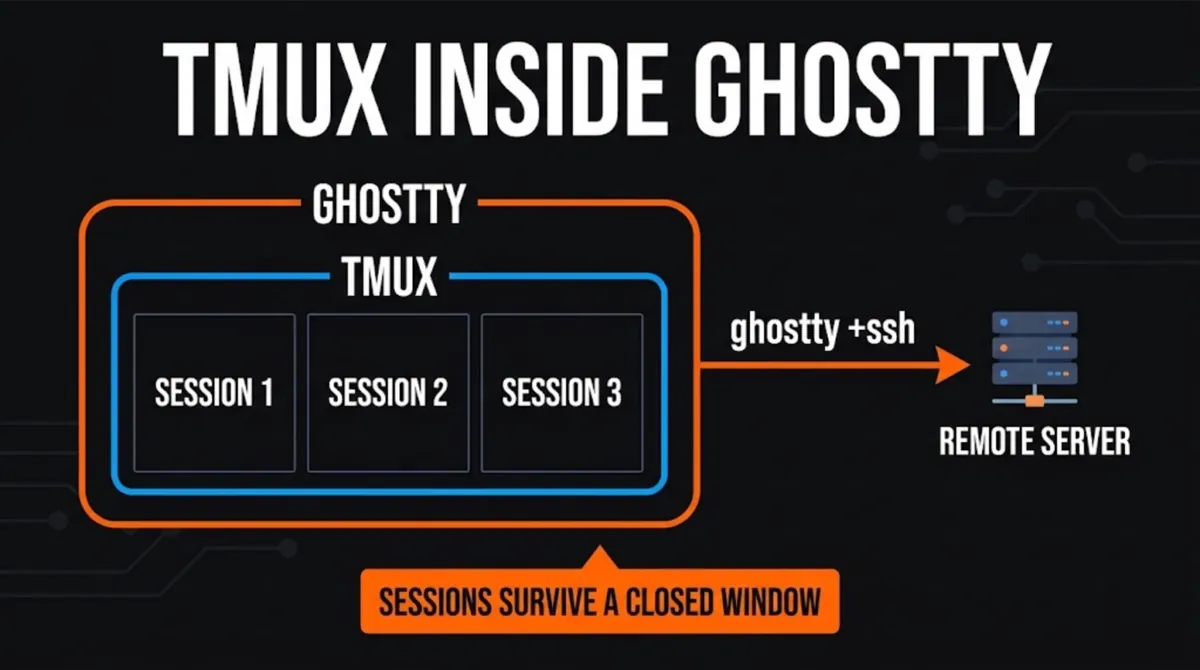
tmux is not a terminal. It is a terminal multiplexer, a program that runs inside any terminal and lets one window hold many shell sessions, split into panes. Its killer feature is that those sessions keep running after you close the window or lose your SSH connection. Start a long job on a remote server inside tmux, shut your laptop, reattach tomorrow, and it is still there.
Ghostty is a native app, so check whether its own window handling covers how you use tmux locally. If you rely on tmux for persistent sessions, especially on servers, keep it. Running tmux inside Ghostty works like running it in any other terminal. The one common snag is that a remote machine may not recognise Ghostty's terminal type, which can garble colours or keys inside tmux and other full-screen programs. The new ghostty +ssh command in 1.4 handles this: it wraps ssh, installs Ghostty's terminfo (the file that tells programs what a terminal can do) on the remote host, and forwards your environment variables.
How to use Ghostty: install, set up, connect
Ghostty install takes a couple of minutes. On a Mac, download it from the official install page. You need macOS 13 Ventura or newer.
For Ghostty on Linux, the install docs list packages for many distributions. One catch with 1.4: GTK builds now require GTK 4.18 and libadwaita 1.7, so older long-term-support distributions may not have a ready package yet.
Once it is installed, here is how to use Ghostty without a learning curve:
- Open it and work as usual. Ghostty hosts the shell you already have, so your prompt, aliases and history come with you.
- Check the docs for settings. Ghostty's documentation lists every option, so start there before changing anything.
- Compare before you commit. Use it for a week next to your current terminal and see whether the speed and memory gains show up in your own work.
- Keep tmux for sessions that must outlive the window.
- Use `ghostty +ssh user@server` for remote work, so programs on the server know what your terminal supports.
What to watch next
The bigger story is libghostty. The about page describes it as a shared, C-ABI-compatible core for terminal emulation, fonts and rendering. Today it is not a stable API and has not been released as a standalone library. Once it is, other apps could in principle embed the same terminal core instead of writing their own.
Ghostty 1.5 is planned for March 2027, and the project is keeping its six-month release cycle. Three things to watch until then: whether libghostty gets a stable release, how quickly Linux distributions catch up with the new GTK requirements, and whether other apps start building on Ghostty's engine. For now, if you spend real time in a terminal, 1.4 is the best reason yet to give it a week.
Questions readers ask
What is Ghostty?
Ghostty is a terminal emulator, the app you type commands into, started by Mitchell Hashimoto as a passion project. It is a native app on each platform: Swift with AppKit and SwiftUI on macOS, Zig with GTK4 on Linux. Its stated goal is to be native, feature-rich and fast at the same time, rather than trading one away.
Does Ghostty work with tmux?
Yes. tmux runs inside Ghostty the same way it runs inside any terminal. You may only need tmux for sessions that must survive a closed window or dropped SSH connection. The new ghostty +ssh command in 1.4 installs Ghostty's terminfo on remote hosts, which avoids garbled colours or keys inside tmux on servers.
How do I install Ghostty on Mac or Linux?
On macOS, download Ghostty from the official install page; it needs macOS 13 Ventura or newer. On Linux, the install docs list packages for many distributions. GTK builds of version 1.4 require GTK 4.18 and libadwaita 1.7, so some older distributions may need to wait for a package or build from source.
What is libghostty?
libghostty is the shared core inside Ghostty that handles terminal emulation, fonts and rendering, with a C-ABI-compatible interface so other programs could embed it. According to Ghostty's about page, it is not yet a stable API and has not been released as a standalone library.
Written by
Abdul Rehman
Lead Systems Architect and Technical Director at Syntaxradar. More in Developer Tools.
More in Developer Tools
See all
Claude Code Extension VSCode Backdoor: How to Check and Clean Up
Phorion reports that Claude Code for VS Code 2.1.313 on the Cursor Marketplace hid a backdoor that planted an SSH key, opened a reverse tunnel and beaconed system details. Cursor…
Oct 31, 2026 · 7 min read

AO3 Outage: Why Is AO3 Down, and Is Your Account Safe?
AO3 went offline on Oct 29, 2026 under a maintenance notice, and OTW estimated 2 to 4 weeks to restore it. On Oct 30 OTW said it had detected evidence of a security incident, that…
Oct 30, 2026 · 7 min read

KV Cache Explained: How a Cloudflare Bug Leaked Users' Prompts
Cloudflare disclosed that 155 responses from its GLM-5.3 model on Workers AI contained fragments of other customers' prompts. A 681,280-token KV cache pool behind a…
Oct 27, 2026 · 7 min read
Latest stories
Front page
Xreal Aura: Should You Buy the $1,099 Android XR Glasses?
Abdul Rehman · Oct 31, 2026 · 7 min read

AI for Hacking: CrowdStrike Says ARTEX Targeted 200+ Orgs
Abdul Rehman · Oct 30, 2026 · 7 min read
Binance Hacked: How One Laptop May Have Led to a $6.36B Theft
Abdul Rehman · Oct 30, 2026 · 8 min read
What Is AI Capex? Why Alphabet's $51.4B Bill Spooked Wall Street
Abdul Rehman · Oct 30, 2026 · 7 min read